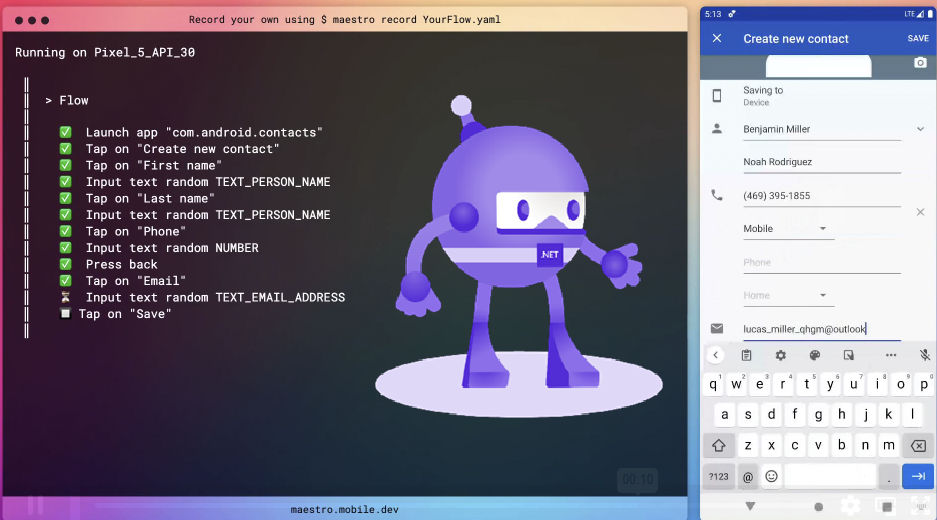

Cross-platform mobile testing has long been a challenge for developers. Tools like Appium and Xamarin.UITest helped automate UI flows, but they often come with steep setup costs, slow execution, and brittle tests. With .NET MAUI being the next-generation cross-platform framework, developers are now looking for a more modern testing approach.
That’s where Maestro comes in — a lightweight, declarative mobile UI testing framework. Think of it as an enhanced version of Appium: easier to configure, faster to execute, and built with developer experience in mind.
What is Maestro?
Maestro is an open-source mobile UI testing framework designed for simplicity and speed. Instead of writing C# or Java test scripts, you define test flows in YAML. These flows describe interactions like tapping, entering text, scrolling, or verifying UI elements.
Maestro supports:
Android and iOS (including simulators/emulators)
Cross-platform test definitions
Declarative, human-readable syntax
Live reloading of test flows
Faster execution compared to Appium
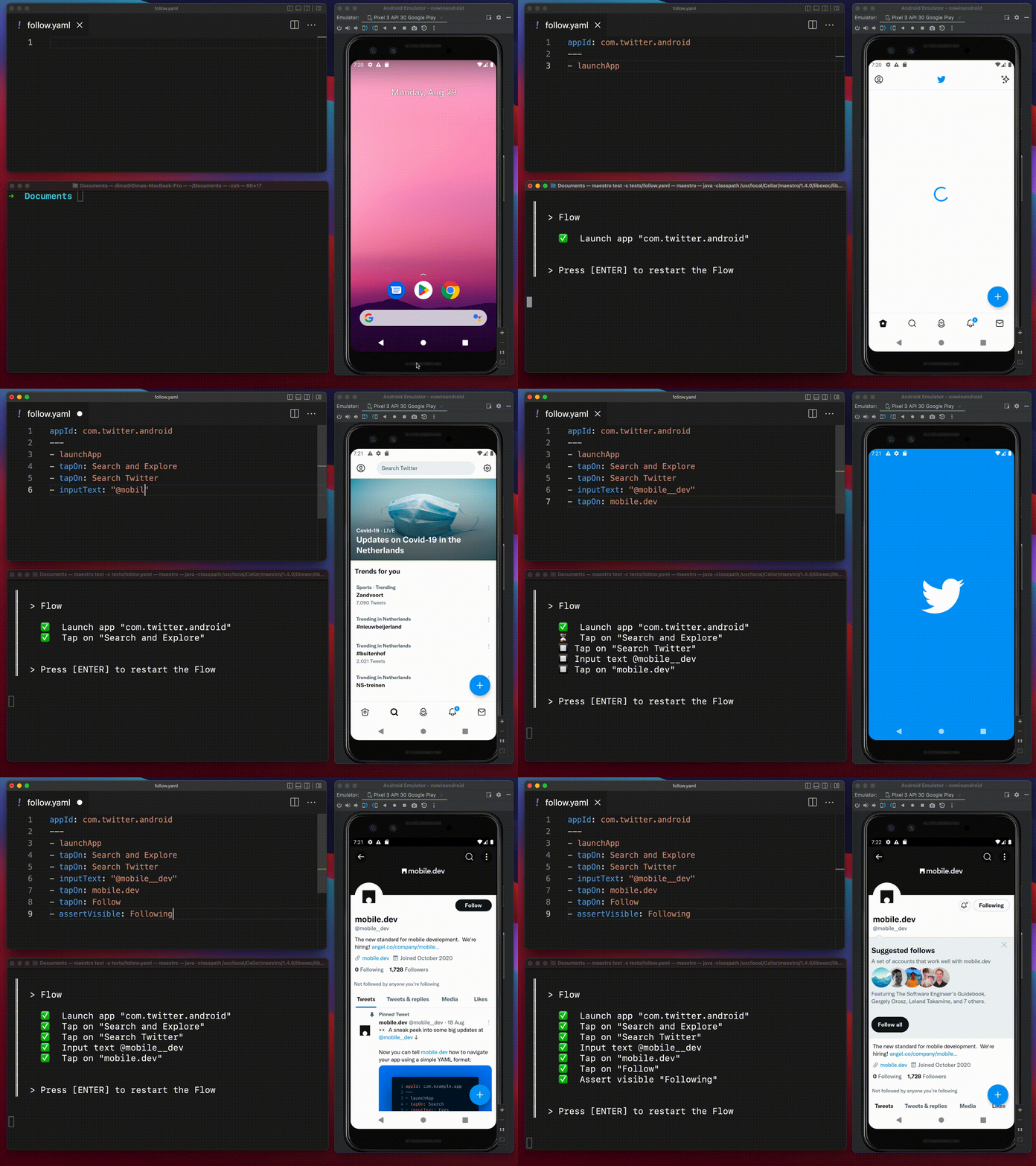
Why Use Maestro with .NET MAUI?
While .NET MAUI allows building apps for iOS, Android, macOS, and Windows with a shared C# codebase, end-to-end testing is still critical. Traditional tools like Appium or Xamarin.UITest can feel heavy and outdated. Maestro addresses this with:
Simplicity – YAML-based test definitions instead of complex code.
Cross-platform support – the same test works for both Android and iOS MAUI apps.
Developer-friendly workflow – hot reload of test flows, easy debugging.
CI/CD integration – works well with GitHub Actions, Azure DevOps, or any pipeline.
Installing Maestro
First, install Maestro on your machine as described at docs.maestro.dev
For Windows I recommend adding Maestro installation directory and Android Sdk folder to to environment path.
Verify installation:
maestro testInstalling Maestro Studio Desktop (Optional)
Maestro also comes with Maestro Studio, a GUI tool that allows you to record and create test flows visually. This is extremely useful for developers who don’t want to handwrite YAML from scratch.
I highly recommended installing the Maestro Studio Desktop to build tests visually.
Install Maestro Studio Desktop: Maestro Studio Desktop
It allows you to:
Record interactions directly on your emulator or device
Generate YAML test flows automatically
Debug test execution in real-time

Writing Your First MAUI Test
Suppose you have a simple .NET MAUI app with a login screen. You can create a Maestro test file named login_flow.yaml:
appId: com.companyname.mauiapp
---
- launchApp
- tapOn: "Username"
- inputText: "testuser"
- tapOn: "Password"
- inputText: "P@ssw0rd"
- tapOn: "Login"
- assertVisible: "Welcome"
This flow:
Launches the app
Enters username and password
Taps the Login button
Asserts that the text Welcome is visible
Real-World MAUI Scenarios with Maestro
1. Navigation Between Pages
Imagine a MAUI app with a Home screen that navigates to a Details page:
appId: com.companyname.mauiapp
---
- launchApp
- tapOn: "Details"
- assertVisible: "Details Page"
- tapOn: "Back"
- assertVisible: "Home"
This ensures navigation works as expected.
2. Testing a ListView or CollectionView
For a MAUI app that loads items from an API:
appId: com.companyname.mauiapp
---
- launchApp
- scrollUntilVisible:
    element: "Item 20"
- tapOn: "Item 20"
- assertVisible: "Item Details 20"
This verifies that long lists are scrollable and items are selectable.
3. Form Validation
Testing input validation is straightforward:
appId: com.companyname.mauiapp
---
- launchApp
- tapOn: "Submit"
- assertVisible: "Please enter a value"
This ensures your validation messages appear when users skip input fields.
4. Platform-Specific Features
Maestro also allows testing OS-level interactions:
Android Back Button:
appId: com.companyname.mauiapp
---
- launchApp
- tapOn: "Details"
- pressKey: back
- assertVisible: "Home"
iOS Swipe Gesture:
appId: com.companyname.mauiapp
---
- launchApp
- swipe:
    direction: left
- assertVisible: "Next Screen"
These tests validate platform-specific behaviors in your MAUI app.
Running the Test
Before running tests, ensure you have an Android emulator or iOS simulator running. Then, deploy your .NET MAUI app to the device.
adb install app.apkYou can run individual test files:
maestro test .maestro/Filter.yaml
maestro test .maestro/SearchQuizzles.yaml
or entire directories:
maestro test .maestro/or even analyze and generate HTML reports:
maestro test --analyze --format html ./FLOWS_FOLDERCI/CD Integration
You can integrate Maestro into GitHub Actions for automated MAUI testing.
If you use Maestro Cloud (PAID), you can use the following GitHub Action:
  - uses: mobile-dev-inc/action-maestro-cloud@v1
    with:
        api-key: ${{ secrets.MAESTRO_API_KEY }}
        project-id: MAESTRO_PROJECT_ID
        app-file: app.apk
For free execution you need to install Maestro CLI on your CI runner and run tests as part of your pipeline.
jobs:

    ui-tests:
        runs-on: ubuntu-latest

        steps:
            - uses: actions/checkout@v4

            - name: Enable KVM
              run: |
                echo 'KERNEL=="kvm", GROUP="kvm", MODE="0666", OPTIONS+="static_node=kvm"' | sudo tee /etc/udev/rules.d/99-kvm4all.rules
                sudo udevadm control --reload-rules
                sudo udevadm trigger --name-match=kvm

            - name: Install Maestro
              run: |
                curl -L https://get.maestro.mobile.dev | bash
              shell: bash

            - name: Run tests
              uses: reactivecircus/android-emulator-runner@v2
              with:
                api-level: 35
                target: "google_apis"
                arch: x86_64
                profile: Nexus 6
                script: |
                    adb install YourApkFile.apk
                    $HOME/.maestro/bin/maestro test .maestro
Comparing Maestro and Appium
Feature | Appium | Maestro |
|---|---|---|
Setup Complexity | High (requires drivers, setup) | Low (single binary installation) |
Test Language | C#, Java, Python, etc. | YAML (declarative) |
Speed | Slower | Faster (lightweight) |
CI/CD Integration | Possible but complex | Simple and fast |
GUI Tooling | Limited | Maestro Studio (visual recorder) |
Best Practices
Keep YAML flows small and modular.
Use IDs or accessibility labels in your MAUI app for stable selectors.
Store test flows in
.maestro/directory.Run tests on both emulators and real devices.
Use Maestro Studio to quickly create and debug flows.
Conclusion
For .NET MAUI developers, Maestro offers a fresh, fast, and reliable way to automate mobile UI testing. While Appium is still powerful and flexible, Maestro provides a developer-friendly experience and is better suited for modern cross-platform workflows.
With Maestro Studio, real-time recording, and support for platform-specific interactions, you can build resilient tests faster and integrate them seamlessly into your development pipeline.
If you want to spend less time debugging test frameworks and more time building apps, give Maestro a try in your next .NET MAUI project.