Hello!
Today we will talk about what is arguably the most significant architectural milestone for .NET MAUI in .NET 11: external platform backends.
For years, the promise of .NET MAUI has been "One project, every platform." However, developers targeting the living room or embedded hardware were left out in the cold. While iOS, Android, macOS, and Windows enjoyed first-class handler architectures, platforms like tvOS, watchOS, and Linux remained either community-supported experiments or relegated to raw platform bindings without the unified MAUI abstraction.
.NET MAUI 11 changes the game by modularizing the platform abstraction layer, making it straightforward to target net11.0-tvos directly from your single multi-targeted project. Let's look at how it works and how to set this up the project.
.NET MAUI 11 delivers a coordinated suite of APIs across the framework that changes this entirely:
XAML
OnPlatformExpansion (dotnet/maui#35901): Now natively recognizesGTK,macOS, andWPF.Public Service Extension Hooks (
dotnet/maui#36633,#36655): Alert and gesture subsystems now expose extension points rather than internal casts.Pluggable
BlazorWebView(dotnet/maui#36658): Community backends can replace the underlying platform handler while preserving services registered byAddMauiBlazorWebView.Asset & SingleProject Extensibility (
dotnet/maui#36653,#36654): Resizetizer andSingleProjectnow expose formal registration contracts.
Let's focus on the heart of this change: how SingleProject registration and neutral-TFM compile activation actually work under issue #36650 (Phases 1–3 of the broader #35021 effort).
The Two Activation Paths: TPI vs. Neutral TFM
External backends generally fall into one of two categories:
Recognized Platform TFM: The platform has a dedicated .NET SDK workload where
TargetPlatformIdentifierresolves cleanly (e.g.,net11.0-tvos,net11.0-ios,net11.0-android).Neutral TFM Fallback: Platforms like Linux/GTK do not have a separate
TargetPlatformIdentifier. They build against a plain, neutral target framework likenet11.0.
To support the neutral fallback without leaking code across platforms, .NET MAUI 11 introduces a selector property: MauiActiveBackend.
A consumer's project file targeting both iOS and Linux GTK now looks as clean as this:
<Project Sdk="Microsoft.NET.Sdk">
  <PropertyGroup>
    <TargetFrameworks>net11.0-ios;net11.0</TargetFrameworks>
    <OutputType>Exe</OutputType>
    <UseMaui>true</UseMaui>
    <SingleProject>true</SingleProject>

    <!-- Activate the external GTK backend ONLY on the neutral TFM -->
    <MauiActiveBackend Condition="'$(TargetFramework)' == 'net11.0'">gtk</MauiActiveBackend>
  </PropertyGroup>

  <ItemGroup>
    <!-- The community backend NuGet package -->
    <PackageReference Include="Microsoft.Maui.Platforms.Linux.Gtk4" Version="0.1.0-preview.14.26567.2" />
	<PackageReference Include="Microsoft.Maui.Platforms.Linux.Gtk4.Essentials" Version="0.1.0-preview.14.26567.2" />
	<AssemblyAttribute Include="System.Runtime.Versioning.SupportedOSPlatformAttribute">
		<_Parameter1>linux</_Parameter1>
	</AssemblyAttribute>
  </ItemGroup>
</Project>
How External Backend Packages Register: MauiPlatformSpecificFolder
Rather than introducing competing build items, PR #36654 builds directly upon the MauiPlatformSpecificFolder infrastructure introduced in #35045. A backend package (or internal platform) registers its folder mapping by providing new additive metadata:
BackendIdentity: The stable backend key (e.g.,gtk,android,ios).ActivationProperty: The MSBuild property name used to select this backend on a neutral TFM (defaults toMauiActiveBackend).ActivationValue: The value that triggers activation (defaults toBackendIdentity).
Here is what the shipping props/targets inside a community backend package look like:
<!-- Platform.Maui.Linux.Gtk4.targets -->
<Project>
  <ItemGroup>
    <!-- Map the 'Platforms/Gtk' directory to the GTK backend -->
    <MauiPlatformSpecificFolder Include="Platforms\Gtk"
                                TargetPlatformIdentifiers=""
                                BackendIdentity="gtk"
                                ActivationProperty="MauiActiveBackend"
                                ActivationValue="gtk" />
  </ItemGroup>
</Project>
Built-in platforms now declare this metadata shape as well, unifying the build engine so first-party and third-party backends follow identical rules.
Deep Dive: The MSBuild Pipeline Inside SingleProject
Behind the scenes, Microsoft.Maui.Controls.SingleProject.targets coordinates compile item selection through two core targets:
[ Platforms/** Removed from Compile by default ]
                      │
                      ▼
        _MauiNormalizePlatformSpecificFolders
   (Resolves dynamic properties & backfills defaults)
                      │
                      ▼
       _MauiCollectPlatformSpecificCompileItems
 (Matches TPI or resolves ActivationValue == MauiActiveBackend)
                      │
                      ▼
     _MauiUnflipKeptCompileItemMetadata
 (Restores ExcludeFromCurrentConfiguration = false for IDEs)
1. Normalization: _MauiNormalizePlatformSpecificFolders
This target runs before compile collection. It:
Backfills plural
TargetPlatformIdentifiersfor backwards compatibility.Applies default values:
ActivationPropertydefaults toMauiActiveBackend, andActivationValuedefaults toBackendIdentity.Dynamic Property Dereference: Evaluates
$(ActivationProperty)dynamically in MSBuild and pre-normalizes whitespace and casing so condition parsing cannot fail or throw string comparison errors.
2. Item Collection: _MauiCollectPlatformSpecificCompileItems
SingleProject sweeps Platforms/** out of the root compile list by default. This target then selectively restores Platforms/<Backend>/**/*.cs files if:
The current
$(TargetPlatformIdentifier)matches any listed inTargetPlatformIdentifiers; ORThe build is running on a neutral TFM, and the resolved value of
$(ActivationProperty)matchesActivationValue; ORThe folder mapping is unconditioned/legacy.
Only the active backend's source files survive this filter. If you build net11.0 without setting <MauiActiveBackend>gtk</MauiActiveBackend>, the GTK source files are excluded. Crucially, recognized platform TFMs (like net11.0-ios) ignore MauiActiveBackend, completely preventing GTK code from leaking into an iOS or Android compilation.
Add GTK Backend to Your Project
Step 1: Update the csproj
Add net11.0 to your TargetFrameworks and set MauiActiveBackend to gtk for that TFM. Then add the NuGet package reference for the GTK backend and set MauiPlatformSpecificFolder to point to Gtk entry point. The final csproj should look like this:
<Project Sdk="Microsoft.NET.Sdk">

	<PropertyGroup>
		<TargetFrameworks>net11.0;net11.0-android</TargetFrameworks>
		<TargetFrameworks Condition="!$([MSBuild]::IsOSPlatform('linux'))">$(TargetFrameworks);net11.0-ios;net11.0-maccatalyst</TargetFrameworks>
		<TargetFrameworks Condition="$([MSBuild]::IsOSPlatform('windows'))">$(TargetFrameworks);net11.0-windows10.0.19041.0</TargetFrameworks>

		<!-- Note for MacCatalyst:
		The default runtime is maccatalyst-x64, except in Release config, in which case the default is maccatalyst-x64;maccatalyst-arm64.
		When specifying both architectures, use the plural <RuntimeIdentifiers> instead of the singular <RuntimeIdentifier>.
		The Mac App Store will NOT accept apps with ONLY maccatalyst-arm64 indicated;
		either BOTH runtimes must be indicated or ONLY macatalyst-x64. -->
		<!-- For example: <RuntimeIdentifiers>maccatalyst-x64;maccatalyst-arm64</RuntimeIdentifiers> -->

		<OutputType>Exe</OutputType>
		<RootNamespace>HomeManagementClient</RootNamespace>
		<UseMaui>true</UseMaui>
		<SingleProject>true</SingleProject>
		<ImplicitUsings>enable</ImplicitUsings>
		<Nullable>enable</Nullable>


		<!-- Display name -->
		<ApplicationTitle>HomeManagementClient</ApplicationTitle>

		<!-- App Identifier -->
		<ApplicationId>com.companyname.homemanagementclient</ApplicationId>

		<!-- Versions -->
		<ApplicationDisplayVersion>1.0</ApplicationDisplayVersion>
		<ApplicationVersion>1</ApplicationVersion>

		<!-- To develop, package, and publish an app to the Microsoft Store, see: https://aka.ms/MauiTemplateUnpackaged -->
		<WindowsPackageType>None</WindowsPackageType>

		<SupportedOSPlatformVersion Condition="$([MSBuild]::GetTargetPlatformIdentifier('$(TargetFramework)')) == 'ios'">15.0</SupportedOSPlatformVersion>
		<SupportedOSPlatformVersion Condition="$([MSBuild]::GetTargetPlatformIdentifier('$(TargetFramework)')) == 'maccatalyst'">17.0</SupportedOSPlatformVersion>
		<SupportedOSPlatformVersion Condition="$([MSBuild]::GetTargetPlatformIdentifier('$(TargetFramework)')) == 'android'">24.0</SupportedOSPlatformVersion>
		<SupportedOSPlatformVersion Condition="$([MSBuild]::GetTargetPlatformIdentifier('$(TargetFramework)')) == 'windows'">10.0.17763.0</SupportedOSPlatformVersion>
		<TargetPlatformMinVersion Condition="$([MSBuild]::GetTargetPlatformIdentifier('$(TargetFramework)')) == 'windows'">10.0.17763.0</TargetPlatformMinVersion>


		<MauiActiveBackend Condition="'$(TargetFramework)' == 'net11.0'">gtk</MauiActiveBackend>
	</PropertyGroup>

	<ItemGroup>
		<!-- App Icon -->
		<MauiIcon Include="Resources\AppIcon\appicon.svg" ForegroundFile="Resources\AppIcon\appiconfg.svg" Color="#512BD4" />

		<!-- Splash Screen -->
		<MauiSplashScreen Include="Resources\Splash\splash.svg" Color="#512BD4" BaseSize="128,128" />

		<!-- Images -->
		<MauiImage Include="Resources\Images\*" />
		<MauiImage Update="Resources\Images\dotnet_bot.png" BaseSize="222,185" />

		<!-- Custom Fonts -->
		<MauiFont Include="Resources\Fonts\*" />

		<!-- Raw Assets (also remove the "Resources\Raw" prefix) -->
		<MauiAsset Include="Resources\Raw\**" LogicalName="%(RecursiveDir)%(Filename)%(Extension)" />
	</ItemGroup>

	<ItemGroup Condition="'$(TargetFramework)' == 'net11.0'">
		<!-- Map the 'Platforms/Gtk' directory to the GTK backend -->
		<MauiPlatformSpecificFolder Include="Platforms\Gtk" TargetPlatformIdentifiers="" BackendIdentity="gtk" ActivationProperty="MauiActiveBackend" ActivationValue="gtk" />
		<PackageReference Include="Microsoft.Maui.Platforms.Linux.Gtk4" Version="0.1.0-preview.14.26567.2" />
		<PackageReference Include="Microsoft.Maui.Platforms.Linux.Gtk4.Essentials" Version="0.1.0-preview.14.26567.2" />
		<AssemblyAttribute Include="System.Runtime.Versioning.SupportedOSPlatformAttribute">
			<_Parameter1>linux</_Parameter1>
		</AssemblyAttribute>
	</ItemGroup>

	<ItemGroup>
		<PackageReference Include="Microsoft.Maui.Controls" Version="$(MauiVersion)" />
		<PackageReference Include="Microsoft.Extensions.Logging.Debug" Version="11.0.0-*" />
	</ItemGroup>

</Project>
Step 2: Add MauiProgram.cs
Add a new MauiProgram.cs file to the Platforms/Gtk folder with the following content:
using Microsoft.Maui.Platforms.Linux.Gtk4.Hosting;

namespace Net11Maui.Linux;

public static class MauiProgram
{
    public static MauiApp CreateMauiApp()
    {
        var builder = MauiApp
            .CreateBuilder()
            .UseMauiAppLinuxGtk4<App>();

        return builder.Build();
    }
}
Alternatively, you can also update existing MauiProgram.cs in the root of your project, by adding the UseMauiAppLinuxGtk4<App>() call to the builder.
Step 3: Add GTK Entry Point
Add a new Main.cs file to the Platforms/Gtk folder with the following content:
using Microsoft.Maui.Platforms.Linux.Gtk4.Platform;
using System.Runtime.InteropServices;

namespace Net11Maui.Linux;

public class Program : GtkMauiApplication
{
    protected override MauiApp CreateMauiApp() => MauiProgram.CreateMauiApp();

    public static void Main(string[] args)
    {
        var app = new Program();
        app.Run(args);
    }
}
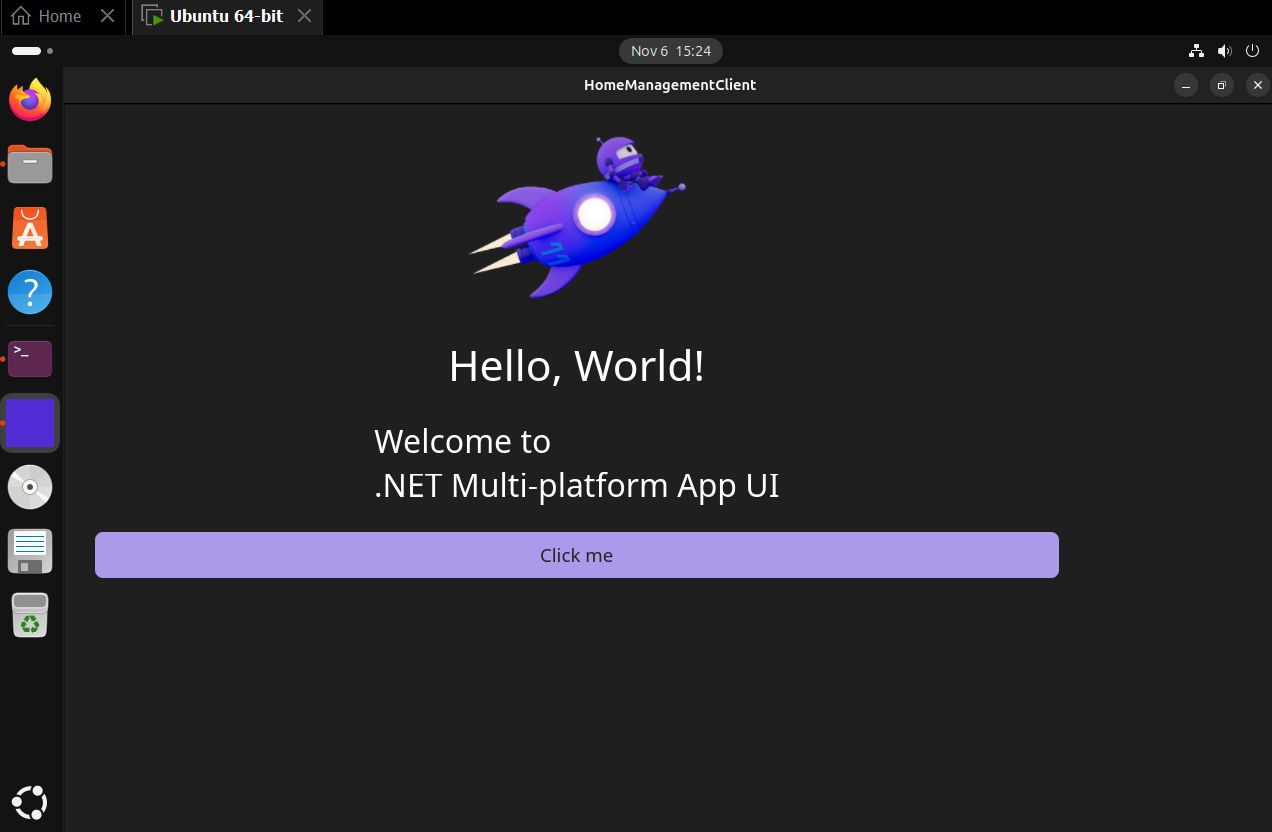
That's it! Now you can build and run your .NET MAUI app on Linux GTK.
Summary
With .NET 11, external platform authors no longer need to hack MAUI's internals. You can now build, package, and distribute a custom backend via NuGet that plugs natively into the .NET MAUI SingleProject engine.